AiMod API Integration Guide
Overview
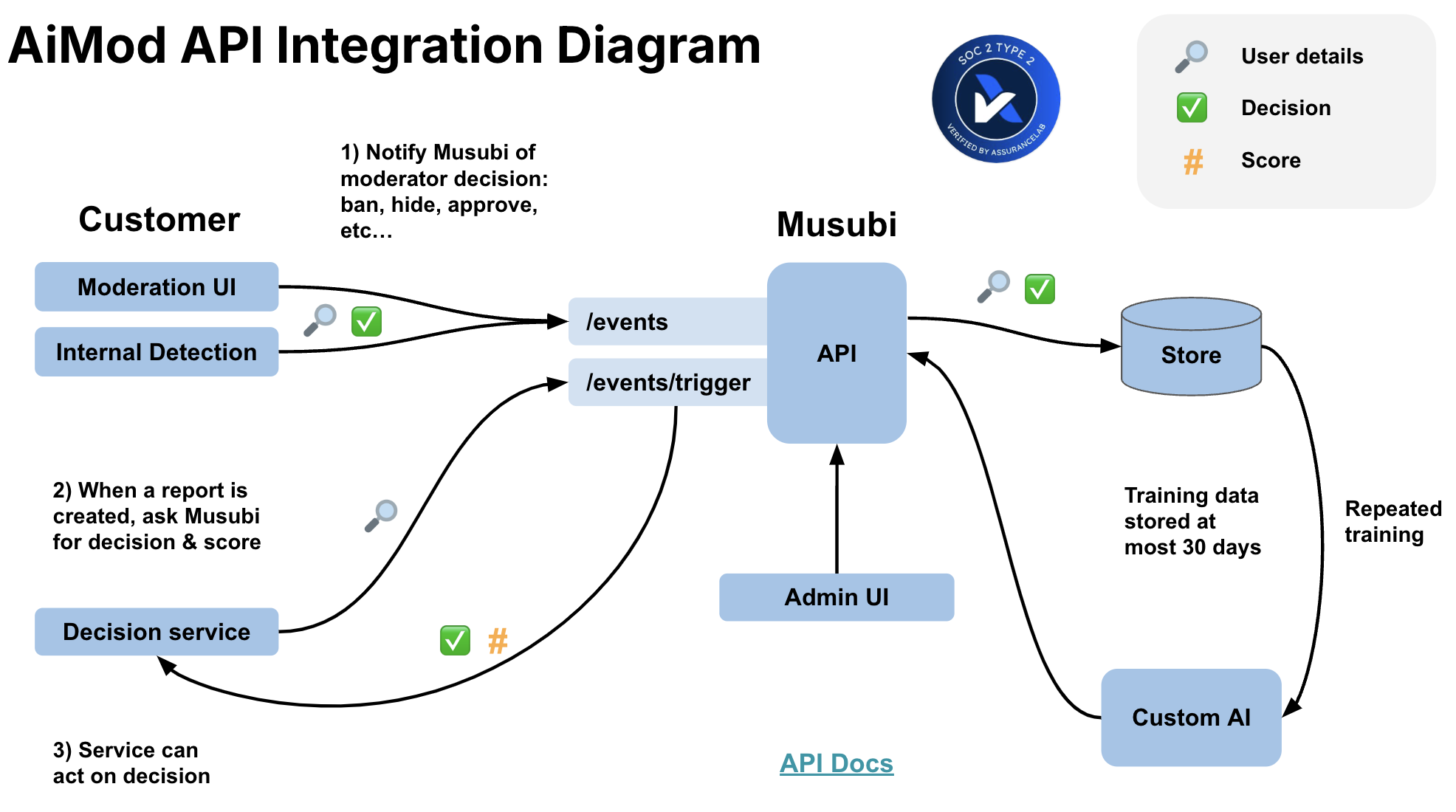
The AiMod API integrates with your app's backend without affecting or changing existing workflows. It involves three steps:
- Send moderation decisions: Submit each decision made by your moderators to the API.
- Request automated decisions: Query the API whenever you require an AI moderation decision.
- Act on the decision: When AiMod recommends that action be taken on a report, configure your backend to perform any checks necessary and then take the appropriate action.
Setup
We create a separate deployment for each customer to enhance data privacy and security. You'll have both a production and a development API:
[yourcompany].musubilabs.ai
[yourcompany].dev.musubilabs.ai
You can find detailed API documentation at the /docs path. See our generic docs as an example.
Authentication
The API is authenticated via API keys like this:
GET https://aimod.musubilabs.ai/api/version
accept: application/json
Musubi-Api-Key: [your API key here]
We'll securely provide you with API keys when we provision your deployment.
Sending Moderator Decisions to the /events endpoint
AiMod is particularly effective because it uses user-level context to make moderation decisions. To train AiMod, you set up your app's backend to send an API request every time a moderator makes a decision. You may also want to set up your SUSPEND, BAN, CONFIRM VIOLATION or other actions to notify us regardless of source. That allows AiMod to learn from your automated rules, from actions taken by other ML systems, or bulk actions performed by your fraud analysts when they find a cluster of bad actors.
Use the /moderation/events endpoint to send us decisions. This endpoint returns immediately and you can treat it as a "fire and forget" call.
It requires two main pieces of information:
- Moderation Action Information: information about the decision as a
ModerationActionTakenV1Model(docs) - Subject Details: detailed information about the subject that the moderator acted on, typically a user.
Moderation Action Information
Information about the decision includes:
action: this is the specific moderation action that was taken. In the simplest case, there will be two actions that will map to AiMod's automated decisions: one for no action being taken (ex:APPROVE) and one for an action being taken (ex:BAN). We accept other relevant actions as well, for exampleWARN,SUSPEND,UNBAN, orESCALATE. Some moderation systems don't have an explicit "approval" and instead a case is closed with no further actions. In these cases, we request that you send an event withAPPROVEorNO_VIOLATIONas the action.moderatorId: this is the identifier of the moderator who took the action, such as an email address or an internal identifier. This may be used to weight different moderators' decisions during model training or to aid in QA.moderatorSource: this identifies the group that moderators belong to. For example, if moderation decisions can come from a moderation team and an automated rules system, you could submit the sourcesmoderation_teamandautomated_system.aiModDecisionId: if a decision was made by AiMod, please submit the decision record ID in this field. This allows us to determine which of AiMod's decisions were acted upon and may be used for billing.comments: Include any moderator comments or reasons regarding their decision.
Returning AiMod's Decisions
Once AiMod starts returning recommended decisions, we ask that you send any actions taken based on AiMod's decisions back to us via the event endpoint. The moderatorID and moderatorSource for these events should be prefixed with musubi. This serves two purposes: 1) it allows us to understand what recommendations have been acted on (thus "closing the loop") and 2) it improves system performance if we include AiMod's past decisions to model training.
Subject Details
This is where the magic happens. AiMod is extremely good at identifying patterns in the subject details that indicate that one of your moderators is highly likely to take a particular action on the subject. We think of the subject details as a snapshot of the subject at the moment in time that you're making the API call.
Flexible schema
AiMod supports a flexible schema, so provide the subject details as a nested JSON object in whatever format is easiest for you. We'll do the rest.
We recommend providing at least the information that's available to your moderators as they review reports. This is often easy to fetch from your internal API that drives your moderation UI. If other information is available, the more relevant information you can provide, the better. This gives AiMod more signals it can use to identify behavior and content patterns that indicate bad actors.
Examples of Subject Details
| Data | Description |
|---|---|
| images / photos / videos | Image URLs with metadata (upload time, etc...) |
| text | Username, title, about me, tags |
| user details | Join date, age, # posts, # followers, etc... |
| recent messages | Last 50 convos with last 50 messages each |
| recent posts / comments | Last 50 posts or comments by user |
| recent actions | Likes, blocks, follows, etc... (with timestamps) |
| network & device info | IP addresses, device info, phone #, geo info |
| moderation history | Past moderator actions and associated metadata |
| risk score(s) | Any internal or external risk scores and related signals |
| report metadata | List of user reports with detailed information |
All fields are optional, these are common fields you can provide that we typically find useful.
Truncate lists
We recommend limiting lists like messages, actions, or IPs to the most recent 50-100 instances for the user. We're always most interested in what the user is doing recently, as recent behavior gives AiMod the best insight into why moderation action may need to be taken.
Requesting Decisions by hitting the /events/trigger endpoint
When requesting a decision, you provide the Subject Details just like Sending a Decision, but AiMod sends you back a recommended decision rather than you having to provide it.
Use the /moderation/events/trigger endpoint to request a decision.
When to Request a Decision
Start off by requesting an AiMod decision at the moment a report is submitted. If the typical flow is that a user (or rule) submits a report, which is then put in your moderation queue, it's most effective to send the report to AiMod just before submitting the report to your moderation queue.
Report Information
The API expects some basic information about the report:
timestamp: This is the time that the account was flagged and a report was submitted to the moderation queue.triggerReasons: The reason(s) that moderation is being requested. Examples may includeSPAM,SOLICITATION,SELLING_DRUGS, etc. These should map to the general reason why an account was flagged for review. Currently only a single trigger reason is accepted per request.comments: This can include any plain-text reason or description why the account is being flagged for review. Examples include comments associated with user reports or descriptions of automated detection systems.
Report-based Configuration
Trigger reasons must be configured in the system and enabled for AiMod to make a decision on them. If a specified trigger reason is not in the system or is not enabled, the event will be accepted but no decision will be made. This feature is useful in cases where we want to expand AiMod's decisioning to additional report types. You can start submitting decision requests for additional report types, and these records can be used to train and evaluate the model before decisions are returned.
Development Considerations
A response takes around 10 seconds, so we recommend designing your system to handle responses as slow as 50 seconds to be safe. We also recommend batching or making decision requests in parallel to achieve higher throughput.
We request that you start submitting decision requests before the ML training phase, so that we can train and test our models on the data that will be available at decision time. Since no decisions will be returned at this point of the project, you can either 1) allow the requests to time-out and ignore errors or 2) set the wait flag to false, which will bypass the decision prediction and return a response immediately.
Returned Decisions
AiMod returns decisions in the format specified in the DecisionRecordModel (docs).
A model score is returned that ranges from 0 to 100. The higher the score, the more "suspicious" it is and more likely it should be actioned. These scores are thresholded to return recommended decisions.
There are currently three decision types: APPROVE, SKIP, and BAN. AiMod will return APPROVE for scores below an "approve threshold" and BAN for scores above a "ban threshold". The approve and ban thresholds are configurable in the admin dashboard. If AiMod is not confident in the decision (and the score falls between the approve threshold and ban threshold), it will respond with a SKIP. These are new or complex cases that are best left to moderators to handle as usual.
Holdout sets
A random subset of accounts are "set aside" in a holdout set. For these accounts, the holdout field in the returned decision will be set to true.
Records in the holdout set should be passed to moderators for review, similar to the SKIP decisions.
You can think of the holdout set as a view into what regular moderation would look like without AiMod. AiMod will still make decisions for each account in the holdout set, but since these accounts are also passed to the moderation team, we get a corresponding human decision too. This allows us to compare agreement between AiMod's decisions and the moderators' decisions to monitor system performance during production. The holdout set also improves model performance since we get moderator decisions for reports that otherwise would have automated decisions from AiMod.
The holdout rate determines the percent of accounts that are put in the hold out set and can be configured in the admin dashboard. We set a high holdout rate initially as we roll out decisions in production and then step down the holdout rate as we verify things are behaving as expected. We recommend a holdout rate of about 5% in steady state.
Actioning on AiMod's Decisions
We recommend this logic:
- If AiMod responds with
SKIPor an error:- Send the report to the moderation queue as usual
- If AiMod recommends an action:
- Perform any checks to be sure the action is reasonable
- Perform the action
- If an account is in the holdout set (
holdout=true):- Ignore AiMod's decision and send the report to the moderator queue as usual
- If the record is a test record (
debug=true):- Ignore AiMod's decision
Double Checking
You may want to perform these checks before acting on an AiMod decision. We're happy to advise on the best approach here.
- Confirm that the user hasn't already been actioned
- Check if the user is
vipor otherwise tagged asno-action - Check if automated actioning is inappropriate. Possible examples:
- an important user with a high follower count
- a premium or paid customer
Testing Flow
We recommend following this testing sequence to ensure a smooth integration:
Phase 1: Development Environment Testing
Running Mode: OFF
-
Test the
/eventsendpoint- Send sample moderator actions to the
/eventsendpoint - Expect a
200successful response
- Send sample moderator actions to the
-
Test the
/events/triggerendpoint- We won't be able to test predictions since we don't have a trained model yet, but we can test that the data schema is correct
- Sending sample trigger requests with Running Mode set to
OFFwill bypass the prediction step - Optionally, you can set
wait=falseto get a response immediately and prevent the request from timing out
-
Verification
- Ask the Musubi team to confirm that data was ingested successfully and that API fields are filled out correctly to support ML training
Phase 2: Production During ML Training Period
Running Mode: OFF
-
Enable production data flow
- Turn on the flow of production moderator actions to
/events - Turn on the flow of trigger requests to
/events/trigger - This data will be collected and used for model training
- Turn on the flow of production moderator actions to
-
Handle trigger requests
- Customers can optionally set
wait=falsefor trigger events to get a response immediately - Otherwise, trigger requests will timeout if
wait=true
- Customers can optionally set
Phase 3: Production Testing with Trained Model
Running Mode: TEST
Once the model is trained and deployed, start returning decisions in test mode:
-
Configure running mode
- The AiMod running mode will be set to
TEST - This will start triggering predictions and will return response payloads with
debug=true - All
debug=trueresponses should be ignored
- The AiMod running mode will be set to
-
Configure trigger requests
- Ensure trigger events use
wait=trueto wait for a prediction to be returned
- Ensure trigger events use
-
Configure holdout rate and decision thresholds
- The holdout rate will initially be set to 100%
- This will return response payloads with
holdout=true - All
holdout=trueresponses should be sent to the moderation team for normal review (similar toSKIPdecisions)
Phase 4: Production Rollout
Running Mode: ON
Once you're ready for an incremental rollout:
-
Enable automated actioning
- Once the Running Mode is set to
ON,debugwill be set tofalse. If the recommended AiMod actioning is in place, this should enable automated actioning on AiMod's decisions.
- Once the Running Mode is set to
-
Option 1: Gradual rollout via holdout rate
- Via the AiMod admin dashboard, reduce the holdout rate (to 99% or 95%, for example) to slowly enable real decisioning for a subset of accounts
- Monitor system performance and agreement between AiMod and moderators
- Gradually reduce the holdout rate if things continue to look good
- Target a steady-state holdout rate of about 5-10%
-
Option 2: Gradual rollout via decision thresholds
- Via the AiMod admin dashboard, set the decision thresholds to be very conservative (e.g. 1% for approve and 99% for ban) and the holdout to be near the target rate (e.g. 5-10%)
- This will result in AiMod skipping nearly all the accounts, except those that it is very confident about
- Monitor system performance and agreement between AiMod and moderators
- Gradually raise the approve threshold and lower the ban threshold if things continue to look good
- Stop adjusting thresholds once you're satisfied with the tradeoff between agreement and action rates
Integration Checklist
Here's a checklist for a successful integration:
Moderator Actions
- Send events for all moderator actions
- Send "APPROVE" events if reports are closed with no actions
- Optional: Send moderation actions from automated systems
- Send events related to decision reversals
- Send AiMod's decisions with
musubiprefixes
Request Decision
- Determine full set of trigger reasons for us to configure
- Start sending requests during the integration phase
Automated Actioning
- Create automations for approvals and actioning
- Build in relevant checks or validations before actioning
- Pass
SKIPdecisions to moderators - Pass
holdoutdecisions to moderators - Ignore
debugdecisions